Files & Folders
The Files & Folders module is a repository for users to save and upload their files onto the platform. As the company grew and added more clients, there was a need to improve the current solution and create folders and subfolders.
User Research
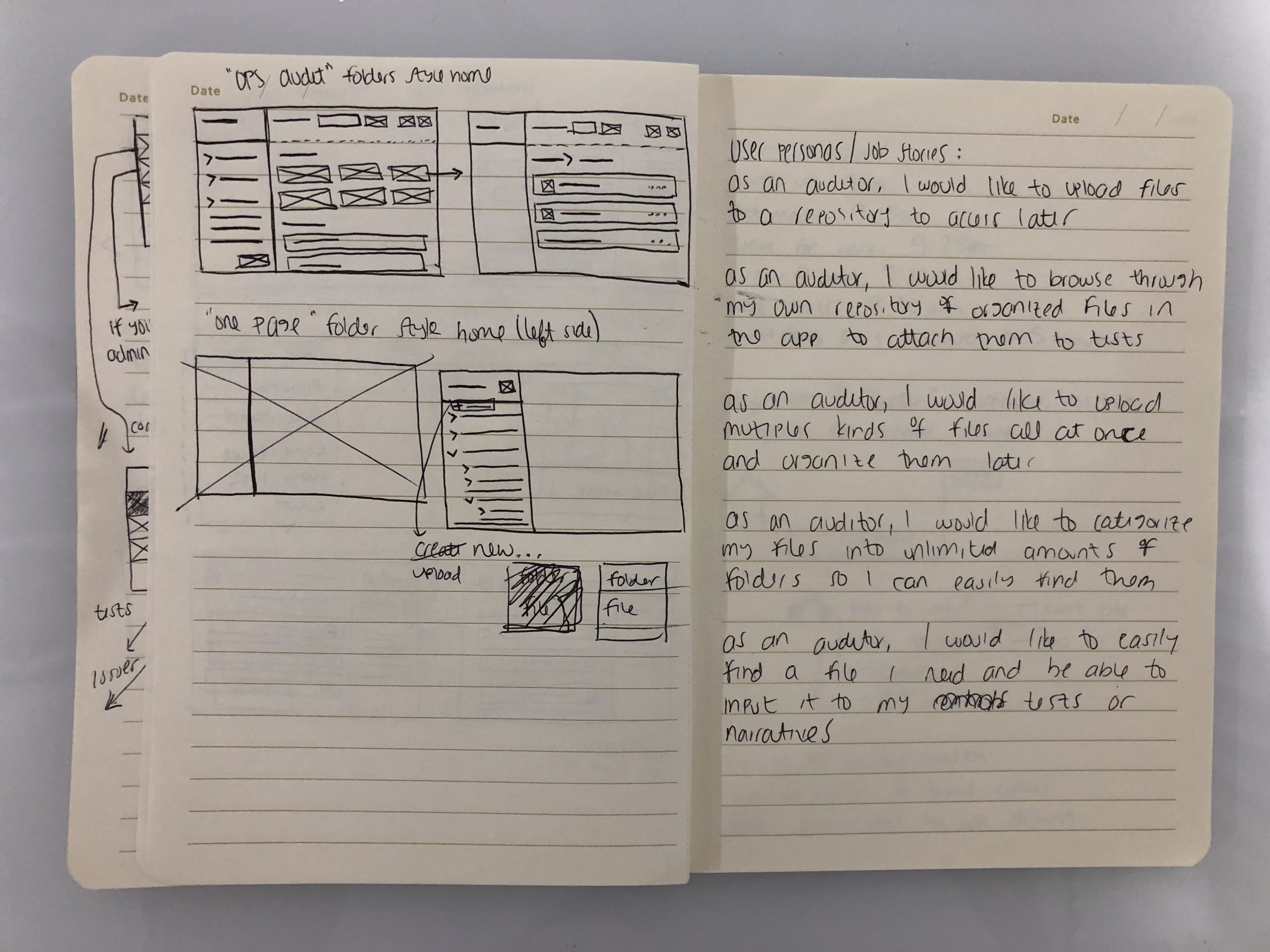
I conduct user research with one of our Fortune 100 clients to understand user needs for the Files & Folders module. Our current solution had the following pain points:
- Ability to create new folders
- Ability to upload files from another module
- Global search functionality
- Moving files to other folders
The current design solution used a table, which did not scale for hierarchy when adding folders or subfolders. And the current backend environment did not allow for users to upload new files from another module, they had to be uploaded in the Files repository beforehand. I worked with a backend engineer to ensure those basic functionalities were available for our user.
Competitor Analysis
There are other file and folder repositories out there, so I conducted a competitor analysis and saw they all had a similar design pattern, a “tree” view.
Another one of our modules had a tree design component so I utilized that component to increase design consistency throughout the products.

As-is design solution for Files & Folders module
MVP
Based on user research and competitive analysis, I worked with our product manager to create the criteria for an MVP:
- Ability to create folders and subfolders
- Ability to move files and folders to other folders
- Global search and search within a specific folder
- Ability to rename folders and files
User Flow & Wireframes
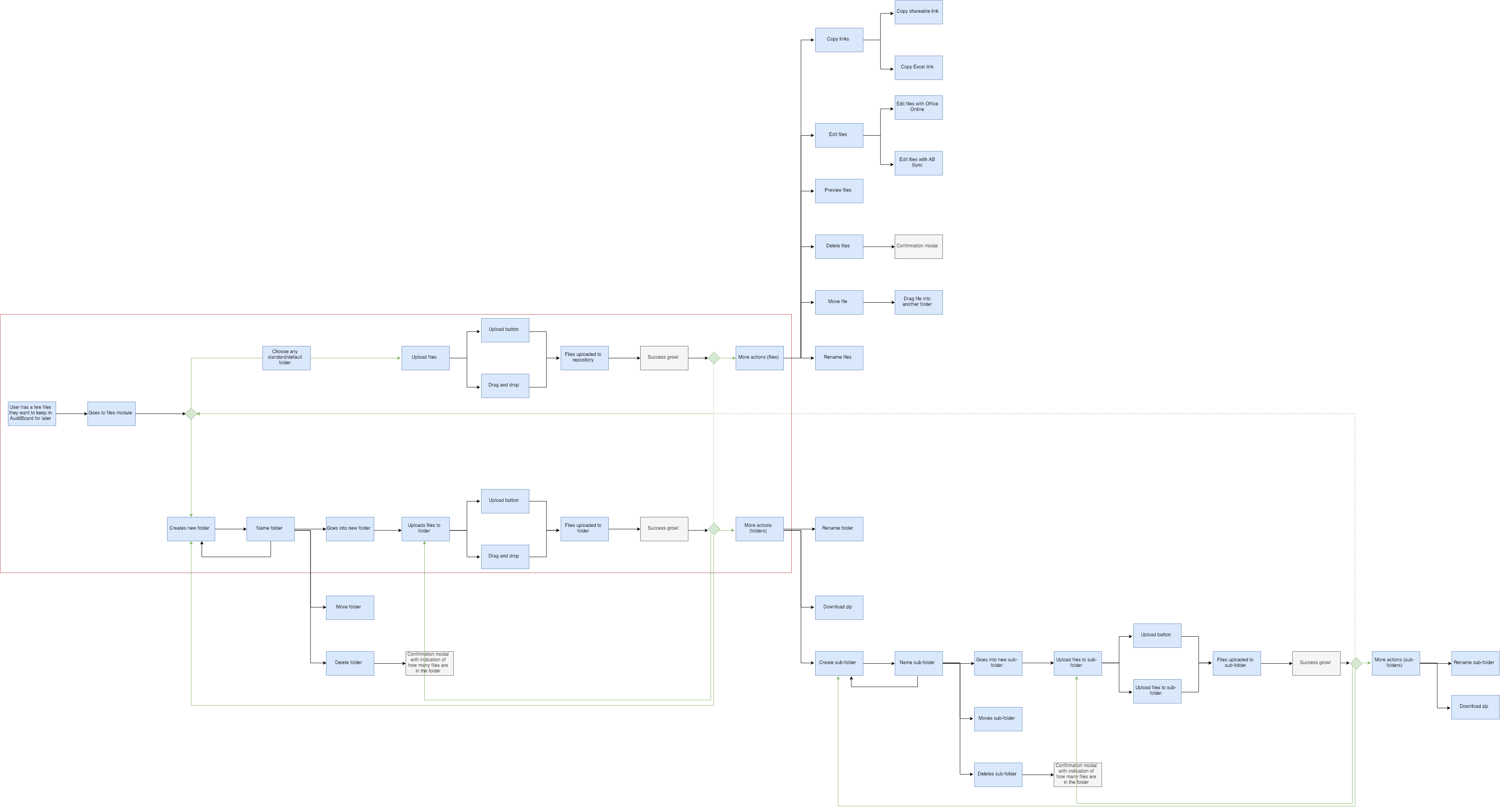
Based on the MVP, I designed a user flow of how a user would create a folder and subfolder, but there were some technical as-is operations I discovered.
Previously, if a user had to upload a file to another module (i.e. Narrative), they needed to go to the Files & Folder module and upload their file there before attaching it to that module Now, a user can go straight to that other module (i.e. Narrative) and upload their file directly there.
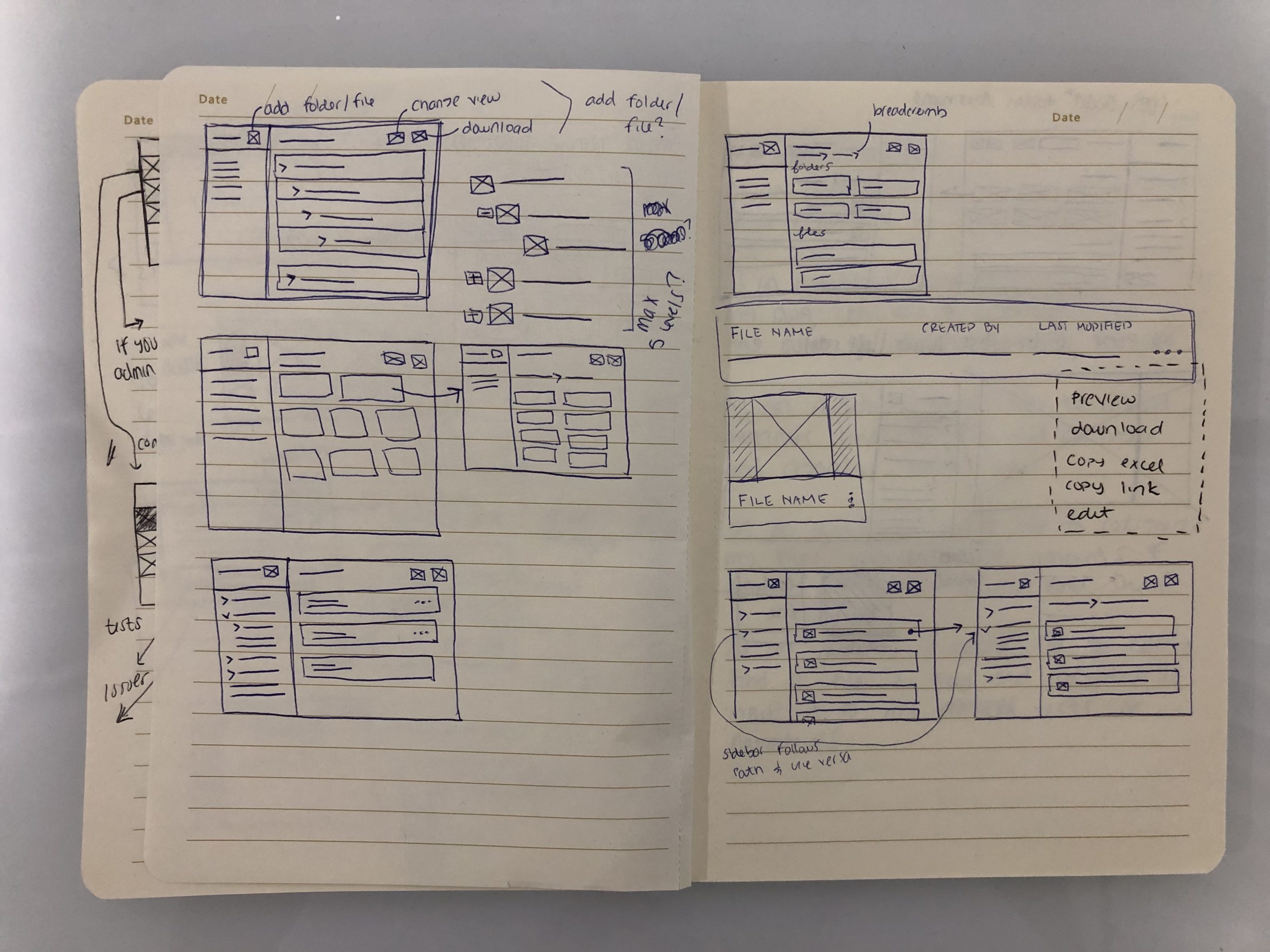
For the wireframes, I repurposed the tree design component which allowed for faster prototyping for user testing.
Prototype
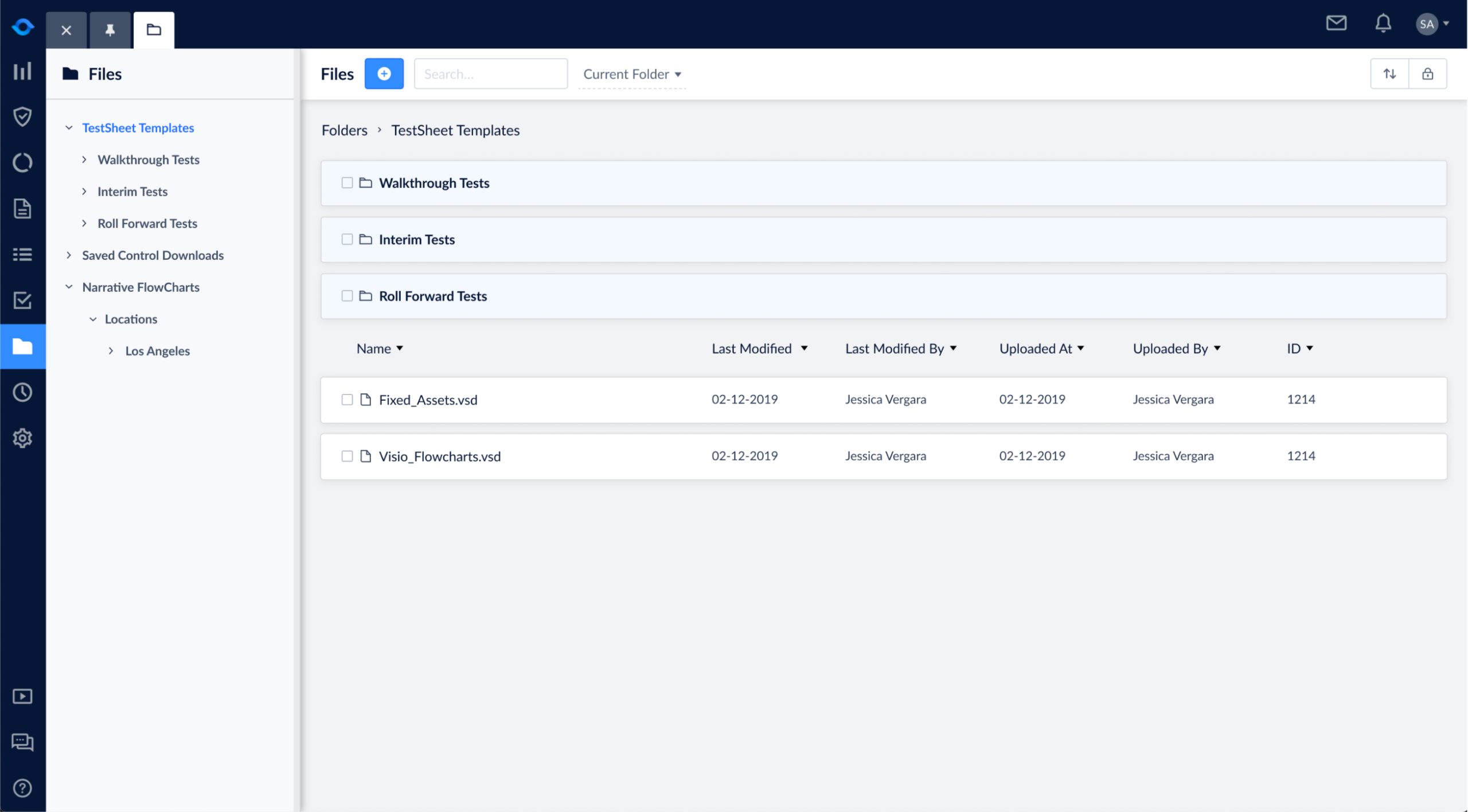
For user testing, I designed and tested several prototypes to gain user feedback. The left sidebar was a collapsable tree view that gave the users a secondary navigation. The page header turned into breadcrumbs so users could understand what folder or subfolder they were on. I stacked folders above files because there was more information needed to be shown for files (uploaded by, created by, uploaded at, created at).

Creating a new folder, uploading a new file, and inline editing.
My product manager and I didn't have a limit on the number of subfolders a user could make, but after talking to our client they only used a maximum of 3 subfolders levels. I decided to cap our subfolders at 7 based on UX design principles for processing information.

Creating subfolders.
In addition to dragging files and folders, I updated the bulk actions bar design component to add the ability to move multiple folders and files to different levels.
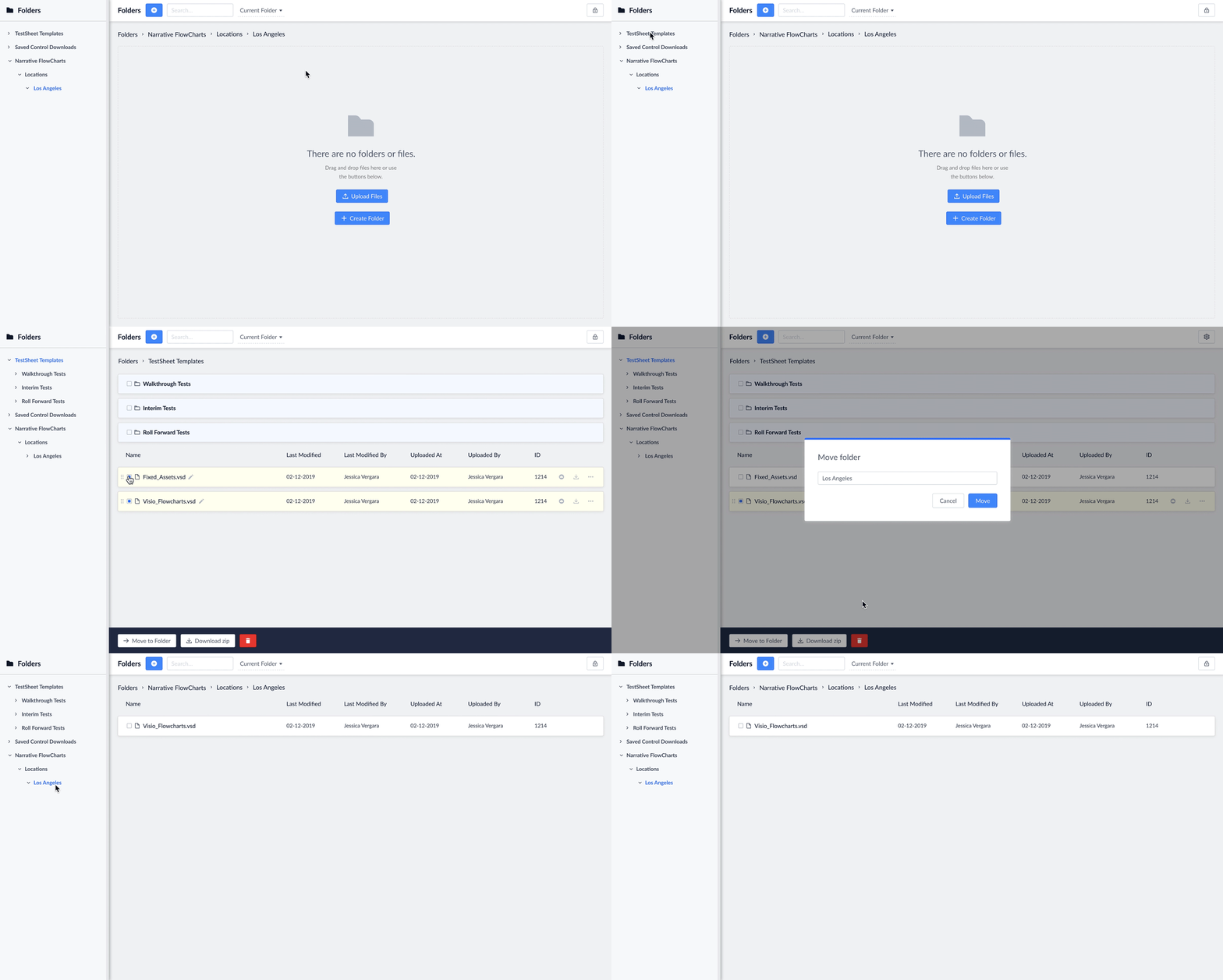
Selecting files and moving them to another folder using bulk actions bar.
For global search, the system would automatically search in the current folder the user is on. If the user wanted to search globally they change it using the view switcher.
The user would be redirected to a search results page where they would have the ability to sort files.
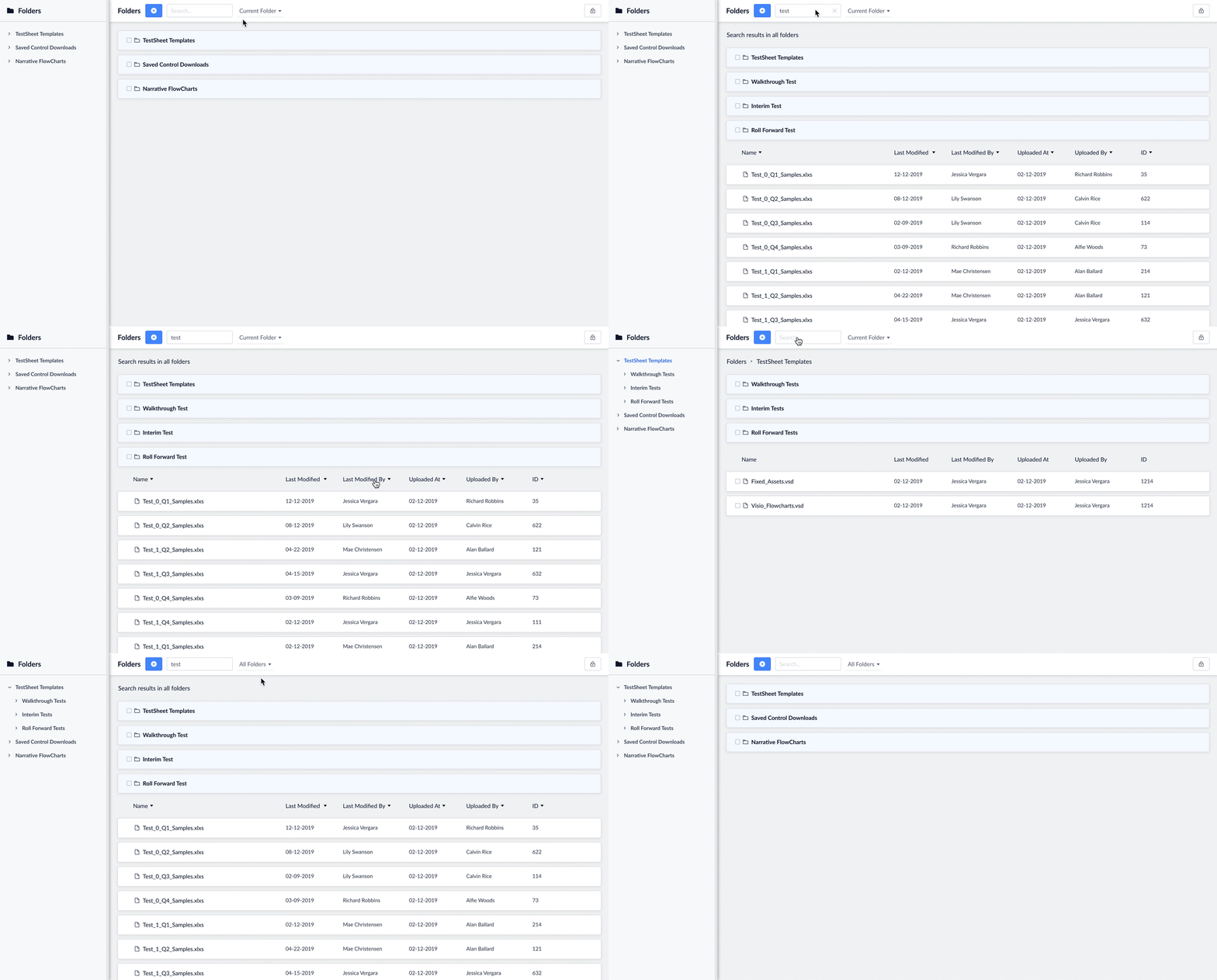
Search for "test" in the current folder or all folders.
Results & Impact
When we tested the final prototype on our clients, they said this was exactly the type of folders organization they needed. After user testing, we added an ID column to be seen by a Superuser and added action icons on hover.
All | CapitalConnect | Data Lineage | Knowledge Catalog | AuditBoard | Time Tracking | Files & Folders
All | Data Lineage | Watson Knowledge Catalog | CompsFinder | AuditBoard | Time Tracking | Files & Folders