Time Tracking
Time Tracking is a module that tracks the time auditors spend on a specific project. Since its inception, the product has had zero users. Users continued to use Excel or other external products to track their time. To be an all-in-one platform, we needed to encompass the entire auditing process which includes the ability easily to track time.
User Research
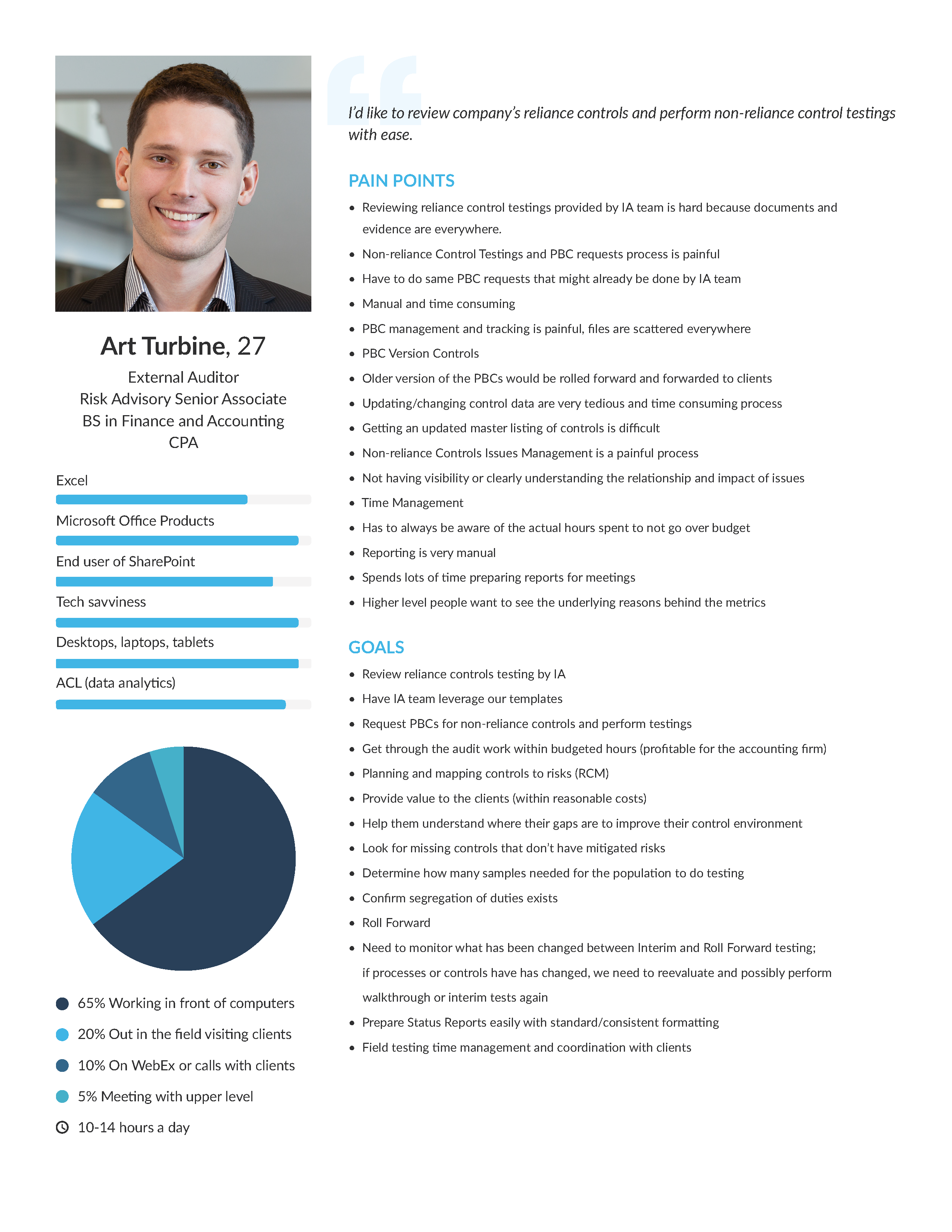
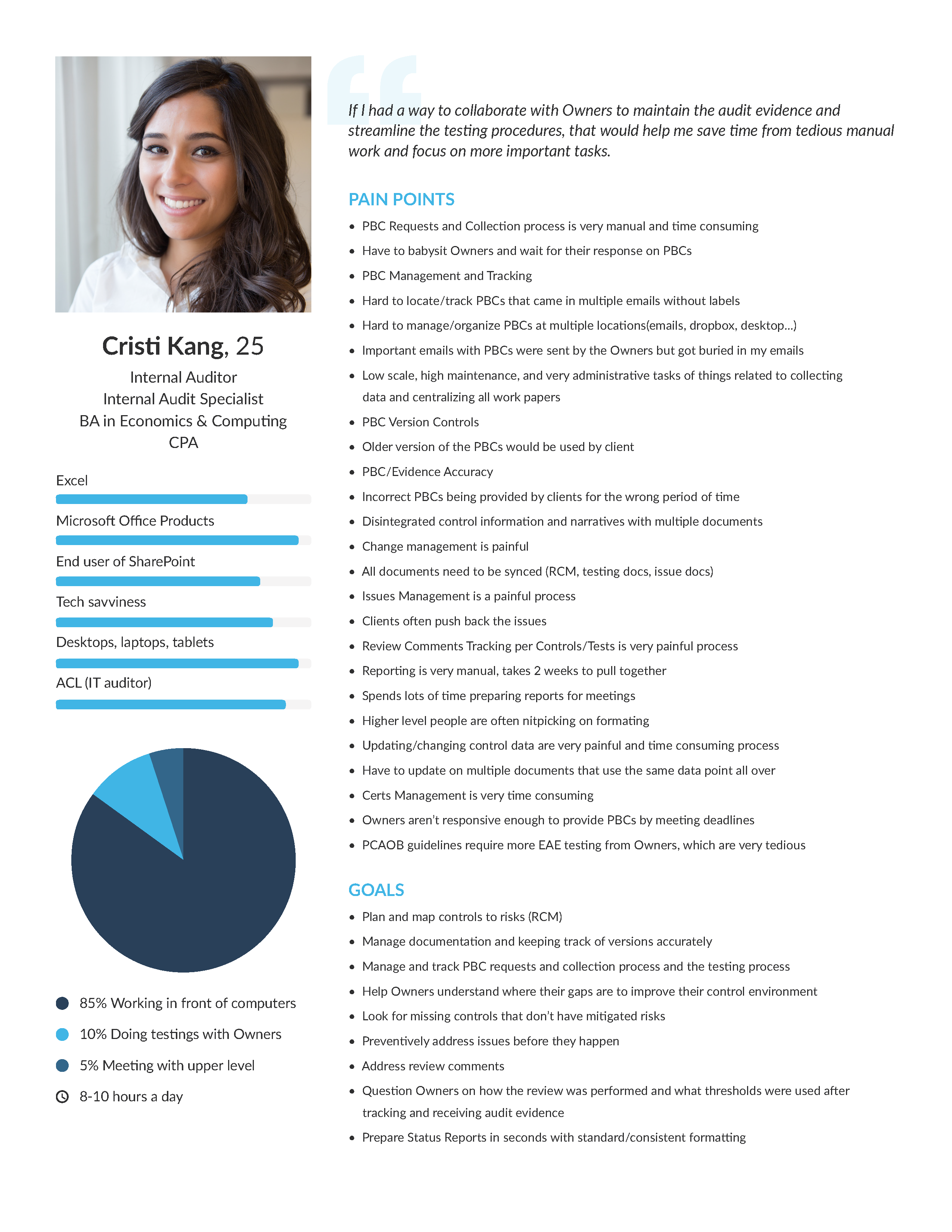
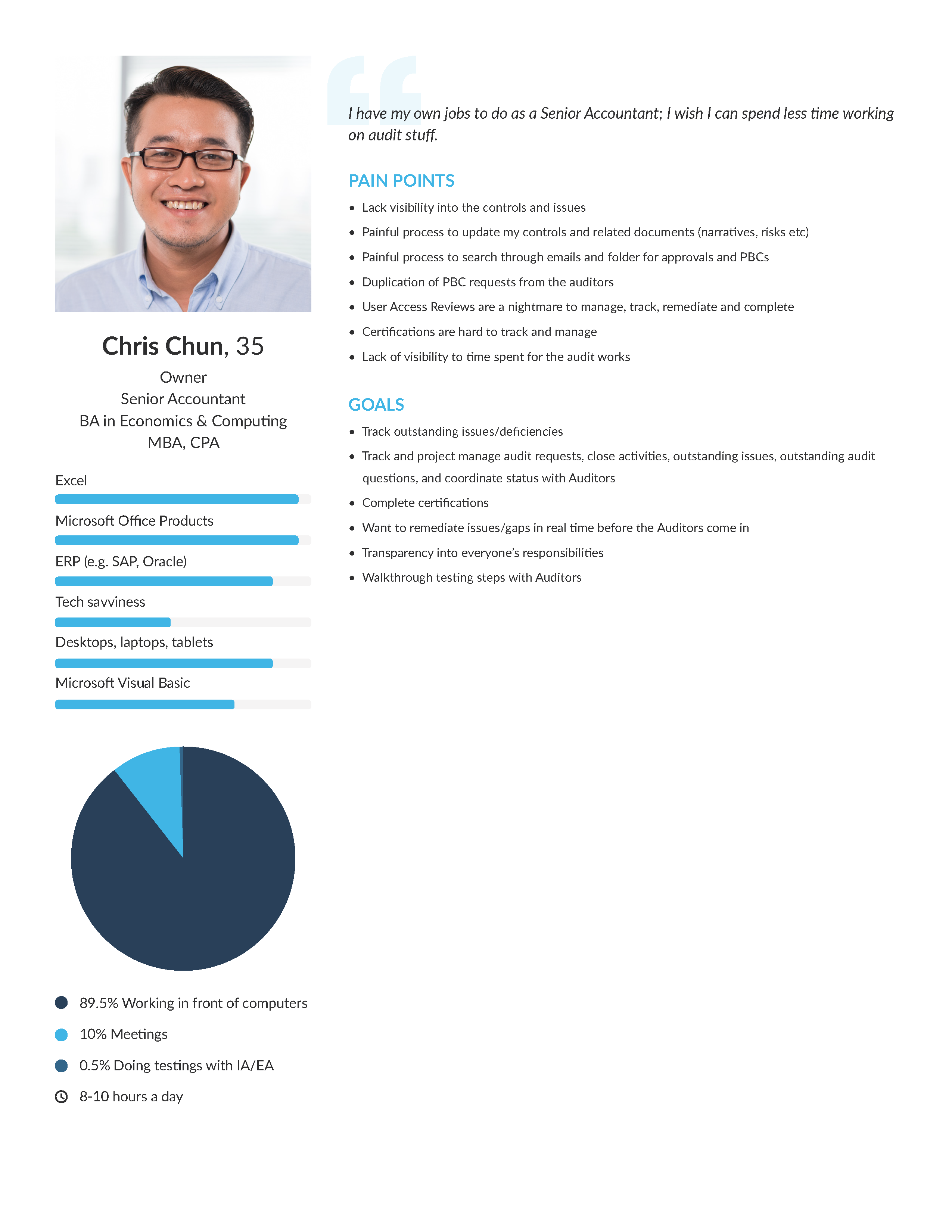
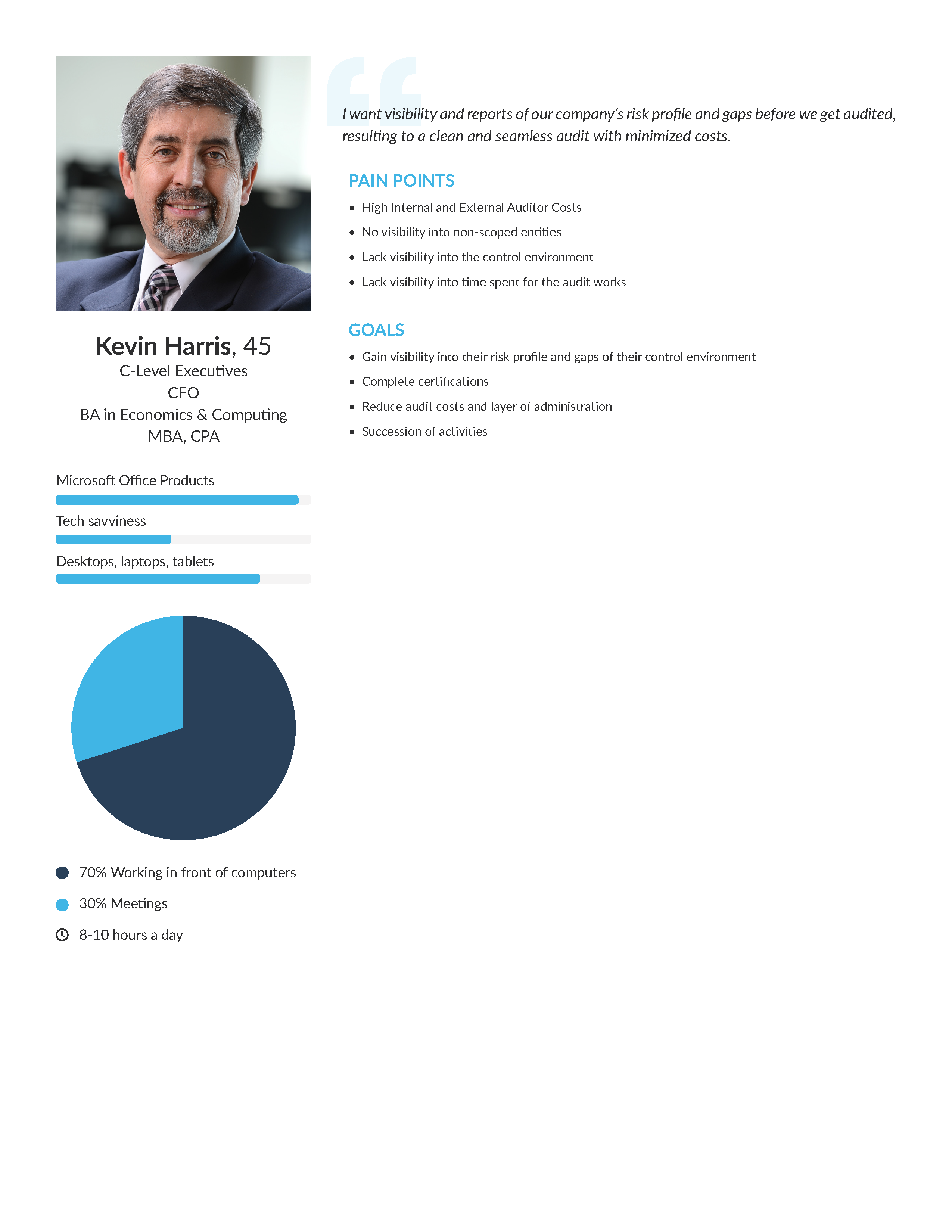
Before I started my user research, I created user personas so I could better understand the people I would be interviewing. I interviewed former internal and external auditors to see their current time-tracking process. I interviewed current users to understand their biggest pain points.
1. No ability to create a timesheet without a category. The current solution forced users to choose a category.
2. No ability to submit reports to a supervisor. With auditing, everything needs to be auditing including time sheets.
3. Time tracking at the wrong level. The current solution tracked entries at a detailed level when they needed to be tracked at a higher level.
MVP
Previously, my product manager compiled a tentative list of possible features:
- Ability to submit and lock hours
- Dashboard of budgeted hours v.s actual hours
- Ability to distinguish billable hours v.s non-billable hours
Due to technical feasibility, we were unable to lock time sheets so that was removed from MVP. According to user testing, having a "comments" section would be better for distinguishing types of hours.
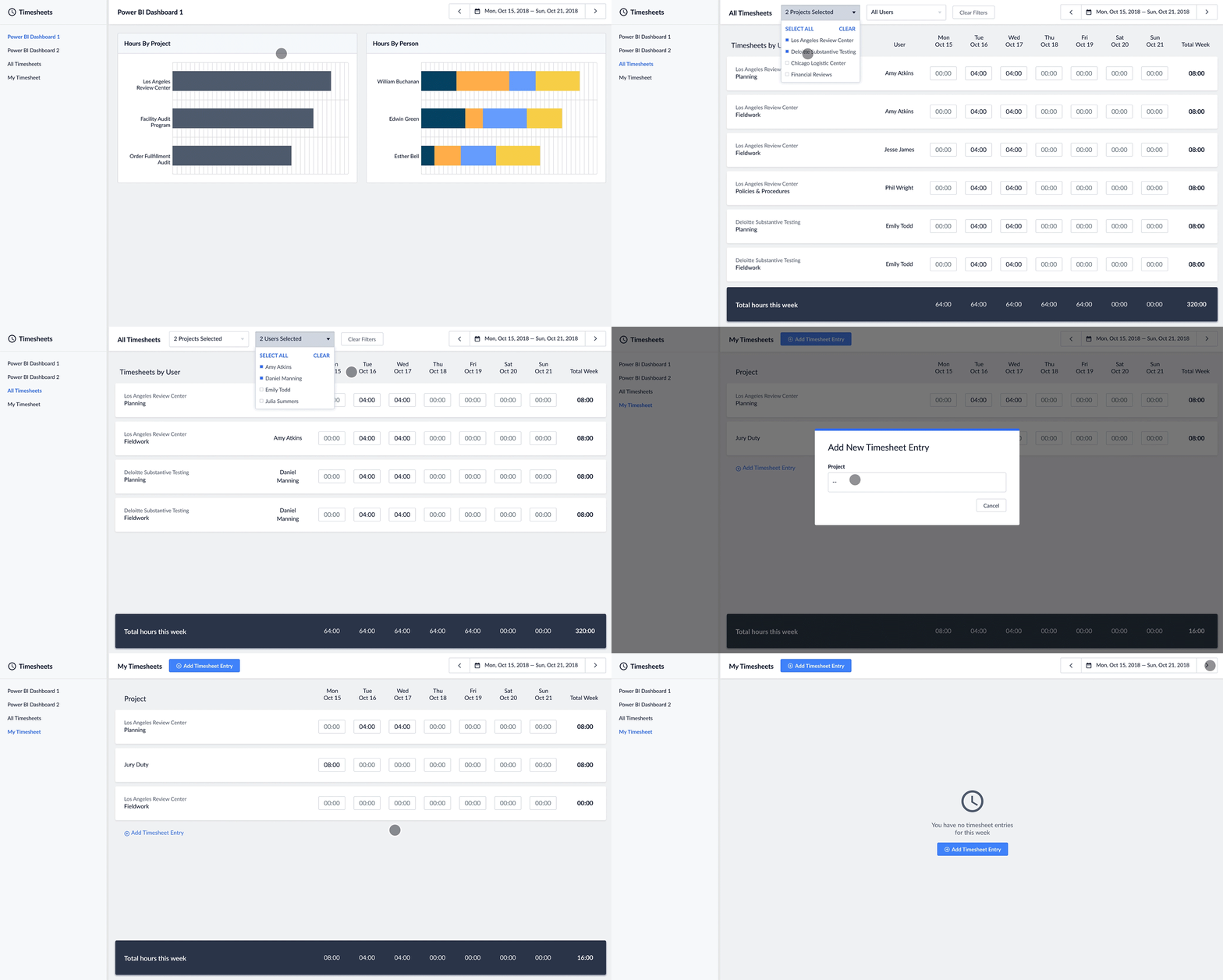
My product manager updated the MVP to include 2 experiences: one for auditors and one for project managers. The project manager’s experience would be at an admin level and would require dashboards of complied timesheet data, a view of everyone’s timesheets, and access to their own timesheet. The auditor's experience would be adding time to their own timesheet.

Dashboard
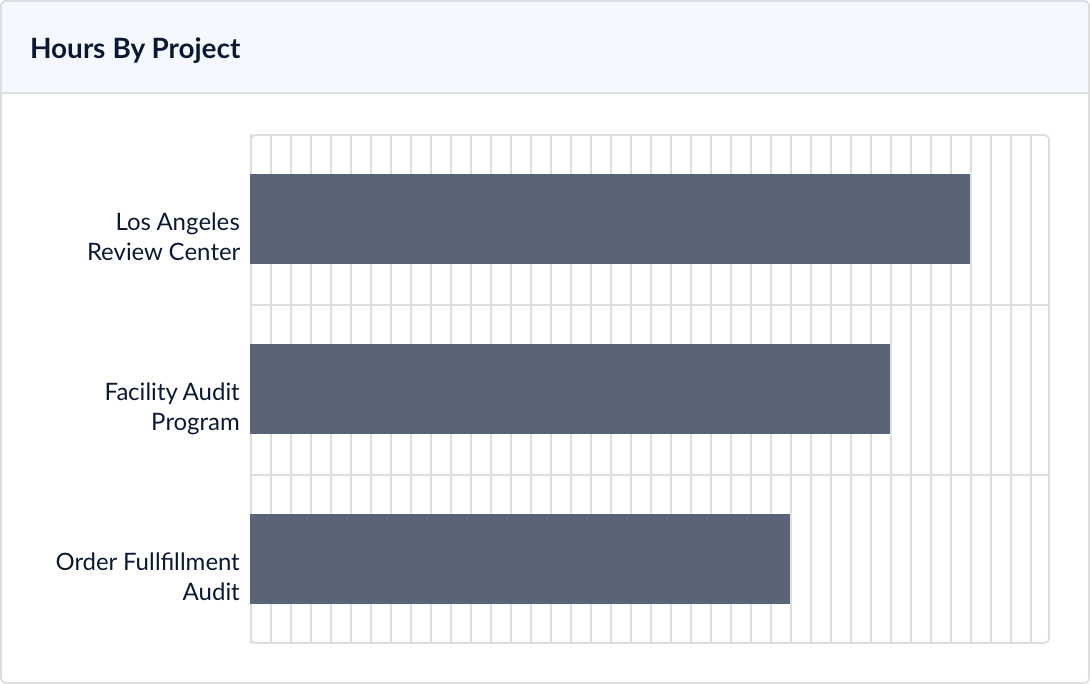
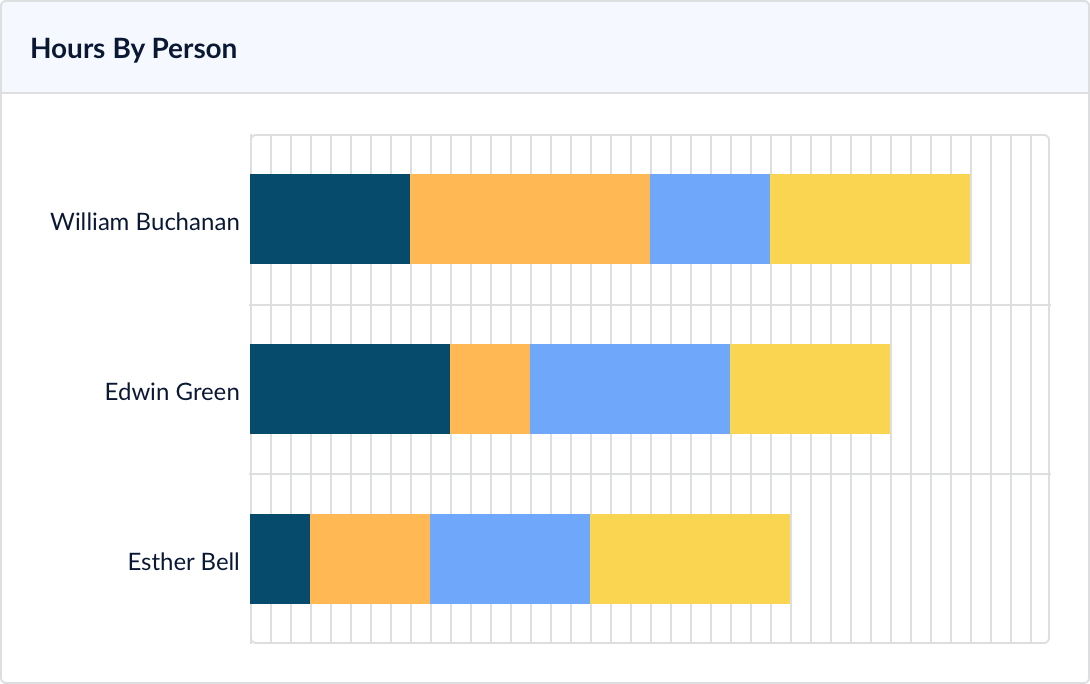
I designed 3 high-fidelity concepts for the types of data the graph should display. The first one was “Hours by Project” to have project managers see what projects took the most time. The second one was “Hours by Person” to see what projects users spent time on.
Out of Scope
The third one was a calendar view. It was supposed to fulfill the job story:
“As a manager, I want to see which days my team does not fill out their respective hours”
The monthly calendar would show how many hours were submitted on which days. When you click on a specific day, you can see which users submitted hours and what project they were working on.
After conducting user testing, users found that the calendar view was helpful, but not essential. We removed the calendar view from MVP so we could make our deadline.

Deliverables
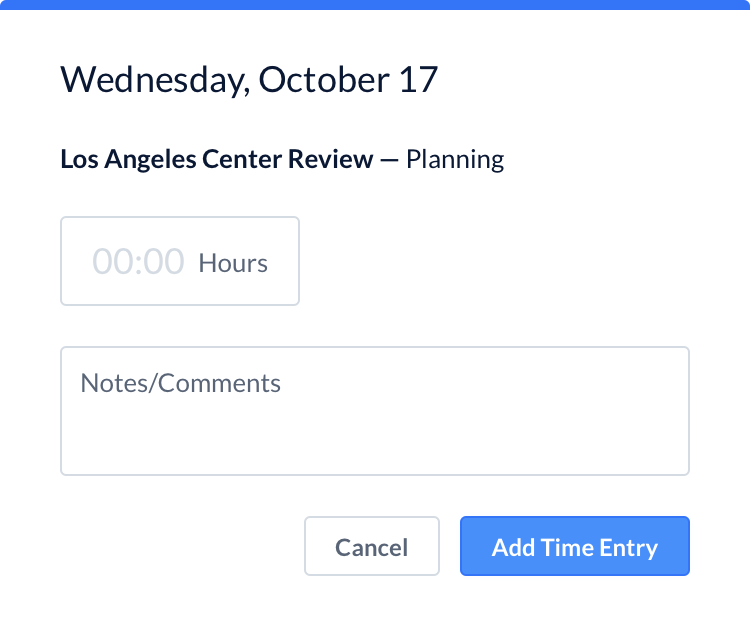
A final change through user testing that was implemented was the placement of the time tracking button. Before, the user flow had the user go into the time tracking module and add their time to the actual module. After user testing, we found that there were too many steps for that user flow, and having a button on the main page that displayed an overlay module was the most efficient.
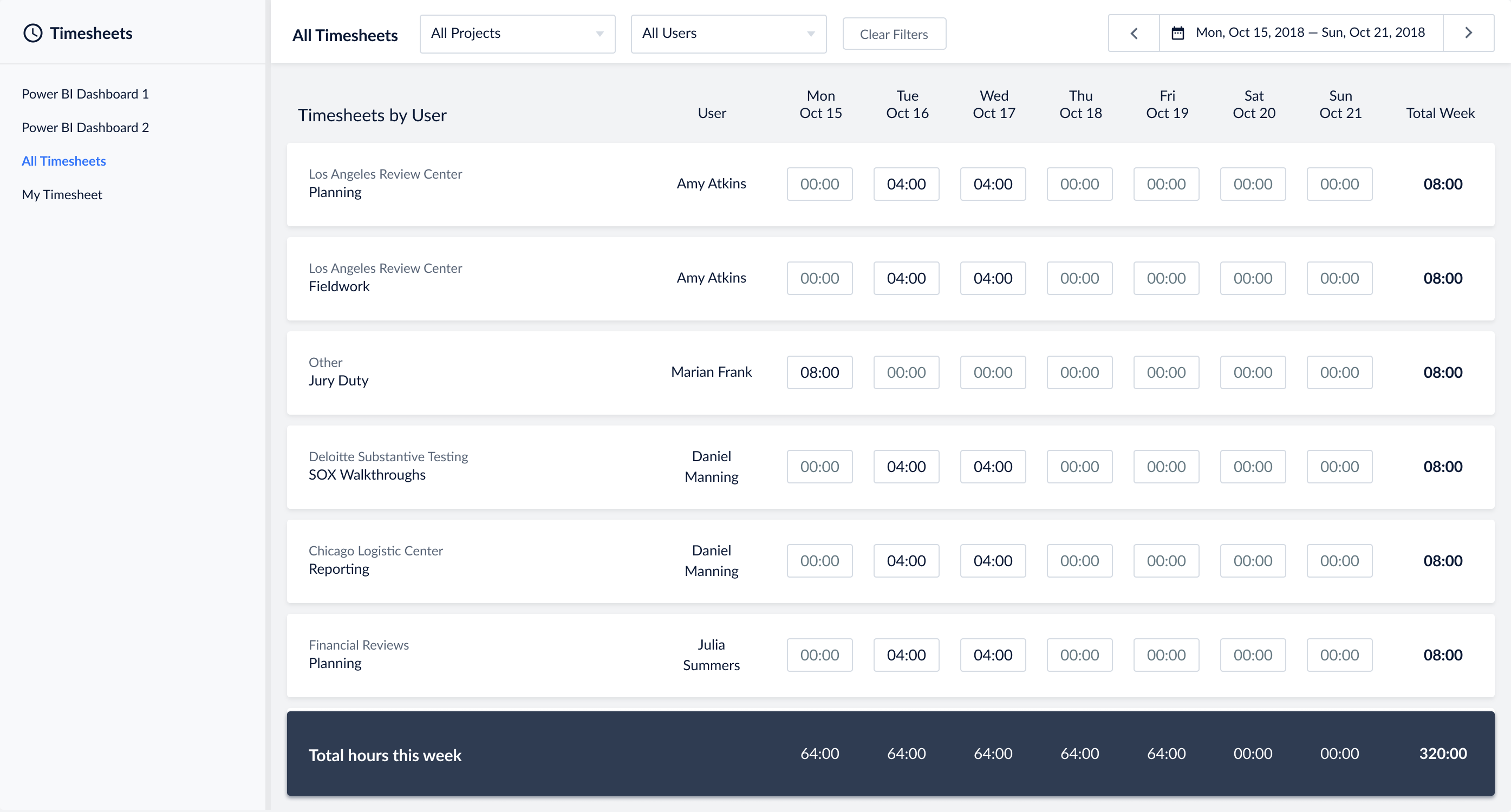
For the auditor user, the time tracking module will be hidden by permissions and there will be a time tracking button that displays a weekly timesheet modal. For the project manager user, the time tracking module will be shown to see all Power BI dashboard, all timesheets, and their personal timesheet.
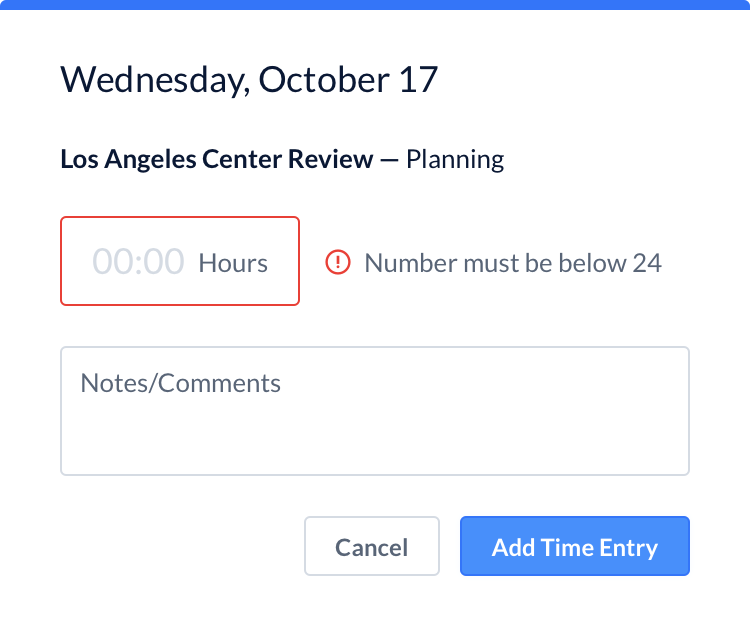
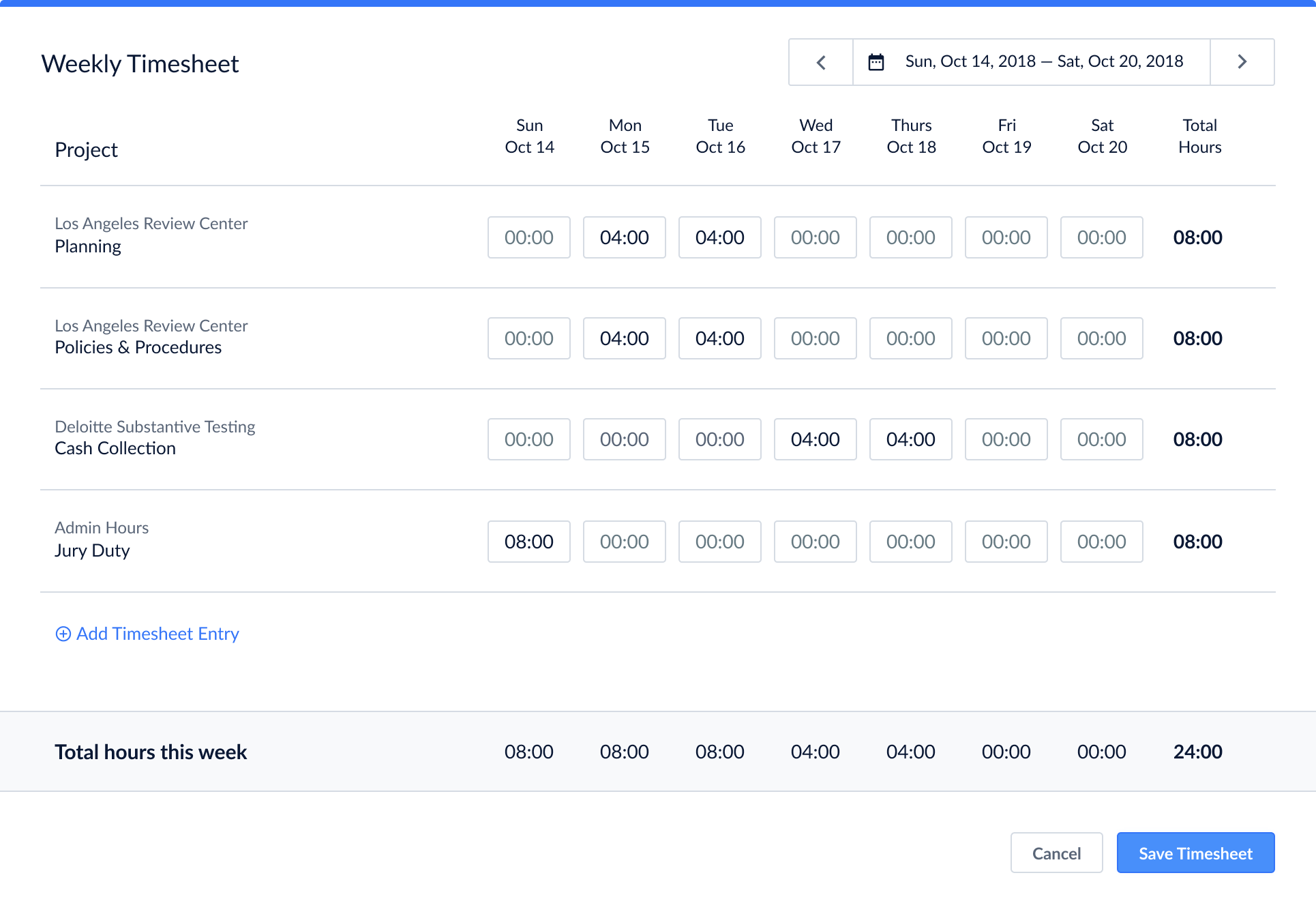
As the designs were being finalized, my engineer developed the back-end portion. Afterward, I went in to develop the front-end portion and made sure the design specs were pixel-perfect.
Results & Impact
When I tested the final designs, users said how easy it was to add time and how much more flexible the new solution was. I was able to integrate time tracking within other modules to keep all time tracking information in one centralized hub.
All | CapitalConnect | Data Lineage | Knowledge Catalog | AuditBoard | Time Tracking | Files & Folders
All | Data Lineage | Watson Knowledge Catalog | CompsFinder | AuditBoard | Time Tracking | Files & Folders